Showing posts with label com. Show all posts
Showing posts with label com. Show all posts
Tuesday, March 28, 2017
How To Upload Template On Your Blogger com Blog 2015
How To Upload Template On Your Blogger com Blog 2015
 Easy way to upload or apply custom Template on your Blog-
In previous post I explained How To Create Blog On Blogger.com We have to create a good looking blog but the templates are provided by blogger are not so good. There is another way to change design of your blog by uploading premium or free template. There are many free/premium templates available on the internet. For example Templatism.com provides 2 col, 3 col templates. Choose one template, download it and upload on your blog.
How to upload custom Template on Blog ?
- Open www.blogger.com and login with your username and password.
- Then select your blog on which you want to upload your custom Template
- Now go to Template [Bottom in left panel] > Backup/Restore [Right Top] as shown in Pic. below

- Now a pop-up will open, now browse your Template and then click on Upload as shown in picture below

- After upload click on Close.
Thats it. You have done. Now enjoy your new customized template on your blog with new design and user interface. :)
If you like this post, please share this post with your friends on Facebook, Google+ and other social sites because Sharing is Caring :)
Keep visiting for more tutorials. ;)
Go to link download

Saturday, March 25, 2017
How To Setup Custom Domain For Your Blog In Blogger With Godaddy com
How To Setup Custom Domain For Your Blog In Blogger With Godaddy com
 |
| Add Custom Domain Name To Your Blog |
Setup Custom Domain For Your Blog -
In this post I will explain "How to setup custom domain name for your blog". I will provide you very easy guide that will very useful for you and it will be 100% works. I will teach you how to setup custom domain name for your blog on blogger.com in easy way.
For Eg. your blogger domain name is www.xyz.blogspot.com and you have to redirect to www.xyz.com, thats it.
For Eg. your blogger domain name is www.xyz.blogspot.com and you have to redirect to www.xyz.com, thats it.
What Is Custom Domain ?
Firstly we must understand what actually custom domain is. Custom domain are likes .com(Commercial) , .org (organisation), .edu (educational) etc. are the types of first level domains.
Eg. www.google.com (First level domain)
www.abc.co.in (Secondary level domain)
Eg. www.google.com (First level domain)
www.abc.co.in (Secondary level domain)
What Is The Need Of Custom Domain ?
When you apply custom domain for your blog, then your users can easily remind domain. Blogger provides you www.xyz.blogspot.com that will not easy to kept in mind. Then it will reduces our users. The best option for this is Custom domains. And custom domains also improve SEO of your Blog / Site. Now we will see step by step guide to setup custom domain.
Follow The Below Steps Carefully To Setup Custom Domain For Your Blog -
- You have to buy custom domains from websites like Godaddy, Bigrock etc.
- Suppose you are buying domain on Godaddy.com
- Firstly login your www.blogger.com blog
- Enter username and password.
- Go in Settings > Basics option. See below screenshot

- Now look at the publishing section, your blog name will be appear then click on setup third party url for your blog link. Now enter your custom domain name like www.xyz.com see below screenshot to understand.

- After entering the url you will get warning we have not able to verify your authority to this domain
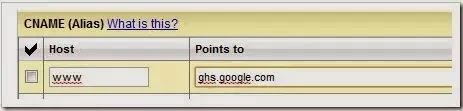
- Now you will get Name, Label or Host and Destination, Target or Points To Fields. You can see above in Screen shot. For eg. www is your host and ghs.google.com is yuor points to field.
- Now open another tab in your browser and go to your domain provider website like www.godaddy.com and enter your login details.
- Now login into your Godaddy account and click on My Account tab.
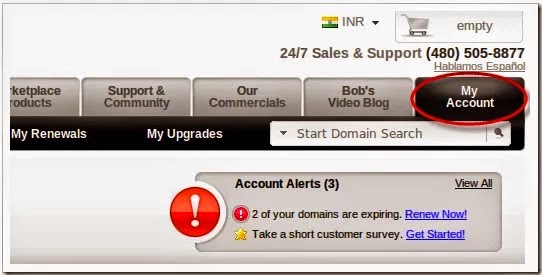
- Now you have to go on Domain Manager.
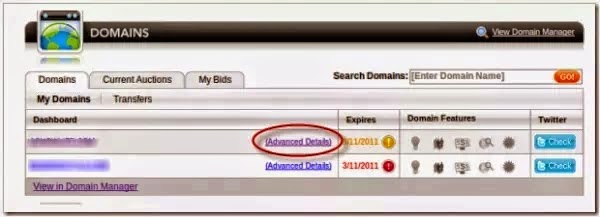
- In the domain manager page you will see option DNS MANAGER. You have to click on DNS MANAGER.
- Note that in DNS MANAGER you have to enter A(Host) and Cname.
- Now click on A(Host) tab you have to enter this 4 ip addresses one by one using add button.
216.239.32.21
216.239.34.21
216.239.36.21
216.239.38.21
- After you done adding records click on save button to save your records.
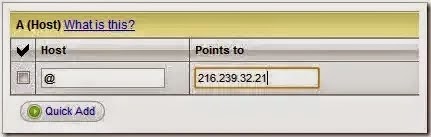
- Now you have to enter your Cnames (alias). You Cname alias are www ghs.google.com see below screenshot. Now you have to enter your Host and Points to Fields thats it. After adding records click on save.
- Now open your blooger.com blog and enter url then click on save button.
You have done, now you have to wait for few hours to take effects in your ip records. Just relax and seat back. After few hours you will see that your blog address is redirects to your new custom domain. :)
Note - If you dont write your host www and points to ghs.google.com then if users not type www in url field, then your site will not appear to them. So follow above steps carefully and setup your custom domain name.
It may take upto 72 hours to take effects in your ip records. I will suggest to you buy a domain name on Godaddy.com.
What you think right now it is easy to setup. Show your love in comments. :) And share this page on Facebook and other social sites.
It may take upto 72 hours to take effects in your ip records. I will suggest to you buy a domain name on Godaddy.com.
What you think right now it is easy to setup. Show your love in comments. :) And share this page on Facebook and other social sites.
If you liked this post, please share his post with your friends on Facebok and other socials sites because Sharing is Caring :)
If you have any query regarding this post, dont hesitate to ask in comments below. :)
If you have any query regarding this post, dont hesitate to ask in comments below. :)
Keep visiting for more tutorials. :)
Go to link download
How To Create A Blog On Blogger com 2015
How To Create A Blog On Blogger com 2015
 Create A Blog On Blogger.com -
Most of the peoples have dream to create a Website. But due to the money problem they are not able to create. Few websites provides free domain, hosting etc. but dont trust such sites as they can easily leak your data. So today I will show how to create a free blog/website on blogger.com.What Is Blog ?
Blogger is owned by Google. First look at actually what blog is. Blog is the platform on which you can able to create a free website/blog. On the internet Blogger and Wordpress provides you an easy way to create blog/website. On blog you can write a post about various topics such as blogging, technology related post and share with the users.
How to create blog on blogger.com step-by-step tutorial-
- First go to www.blogger.com
- You need a gmail account to access Blogger.com [Create one if you dont have]

- Then enter your gmail username and password and click on "Sign in"
- Now click on Create a new blog and then enter Title of blog you want to create and in next field enter blog address e.g abc.blogspot.com
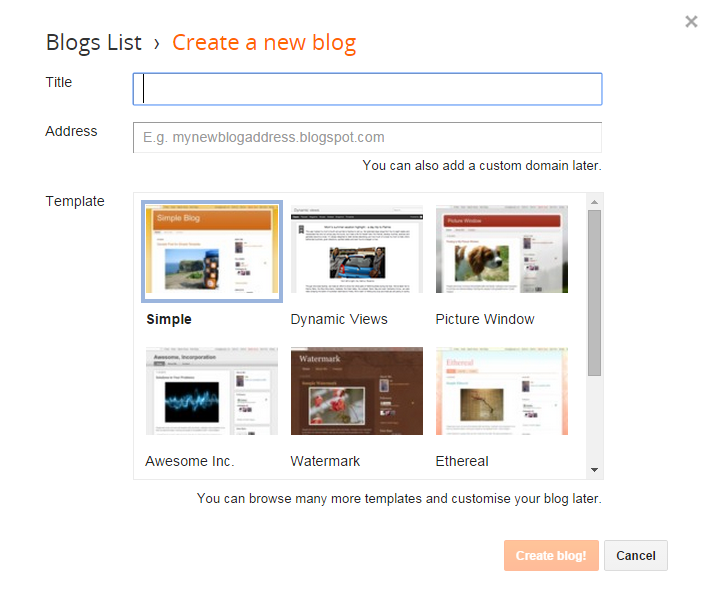
- Check address availability of your blog. If blog address is available then choose Template and then click on Create blog.
- Thats it. Now your blog is created. :)
If this post was helpful then please share this post on Facebook with your friends.
Keep visiting for more such tutorials and tricks. :)
Go to link download
Subscribe to:
Posts (Atom)